
How do I log in to Stake?
You log in to Stake on stake.com, the only official address, from the Sign In button. Type the address yourself or use a bookmark you created: a page that only looks like Stake can steal your password and your 2FA code. Other businesses also use the name Stake, such as a share-trading app and a property-investment app: they have no link to Stake.com, and their sign-in pages are not Stake’s.
- Open stake.com in your browser and check the address bar.
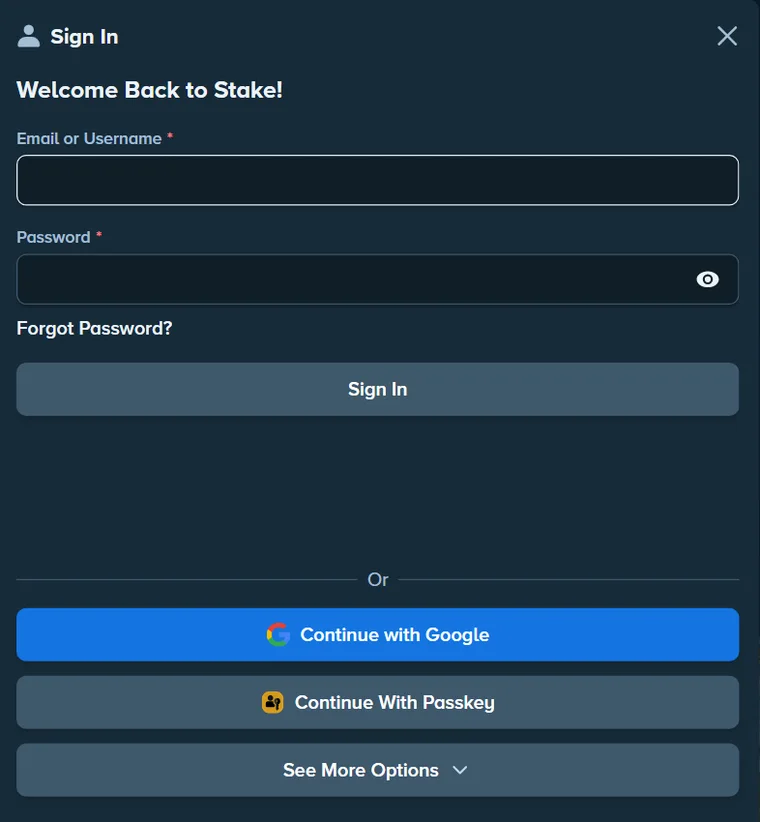
- Click Sign In to open the sign-in window.
- Choose your method: email or username and password, Google or another linked account, or a passkey.
- Enter your 2FA code if you turned it on. Each code lasts 30 seconds.
Which sign-in methods does Stake offer?
Stake offers three ways to sign in, and you can add a passkey at any time:
- Email or username, and password. The details you chose on the sign-up form.
- Google or another account. If you signed up with Google, Facebook, Line or Twitch, sign in with the same button.
- Passkey. Sign in without a password, with your fingerprint, face or device PIN.
How do I turn on Stake 2FA?
You turn on Stake 2FA in Settings, under Security, with an authenticator app on your phone. It secures sign-ins, withdrawals, tips and every transaction that sends funds. Do it before your first deposit.
- Install an authenticator app on your device.
- Open Settings, then Security in your Stake account.
- Link the app: scan the QR code or copy the string Stake shows.
- Enter the code from the app. A new one appears every 30 seconds.
- Open the email Stake sends and follow its link to finish turning on 2FA.
How do I set up a Stake passkey?
You add a passkey from the security part of your account settings, in four steps. A passkey replaces the password with your device’s lock, and it comes from a standard backed by Apple, Google, Microsoft and the FIDO Alliance.
- Sign in to Stake and open your account settings.
- Select Security in the settings menu.
- Choose Add Passkey.
- Follow the prompts on your device.
The main gain is protection against fake sites: a passkey works only on the website it was made for, cannot be guessed, and is not exposed by a data breach. The device you sign in on must also be close to the device holding the passkey.
How do I reset my Stake password?
You reset a forgotten Stake password from the Forgot Password form, as long as a verified email is linked to your account:
- Open the Forgot Password form from the sign-in window and enter your verified email address.
- Check your inbox. A recovery email arrives within minutes. Security emails come from noreply@stake.com.
- Click the link in that email and choose a new password.
- Stuck at any step? Write to support@stake.com.
If you opened your account through Facebook, Google, Line or Twitch, you change your password on that platform, not at Stake.
What if I lost access to my email or my 2FA app?
Write to recovery@stake.com. Which address you write from depends on what you lost:
| What you lost | What to do | What happens next |
|---|---|---|
| Your email account | Write to recovery@stake.com from the new address you want on your account | The support team takes it from there |
| Your 2FA app or codes | Write to recovery@stake.com from the email on your account | Stake asks for account details to confirm ownership; access returns within 48 hours once verified |
Do not open a second account while you wait: Stake’s terms allow one account per player.
How to check that an email really comes from Stake
Check the sender’s address first. Stake sends security, sign-in, verification and code emails from noreply@stake.com, marketing from noreply@mail.stake.com, and its support team uses support@stake.com.
Stake’s help centre (read in November 2026) says not to click any link in a message presented as Stake’s if it does not come from the @stake.com domain, and to report it to support. Never send your password or a 2FA code by email.
Stake down or not working? What to check
Start with your connection and your browser, the two things you can check yourself. If stake.com will not load or the Stake login keeps failing, run through these checks:
- Your connection. Check whether other sites load.
- Cache and cookies. Clear them, then reload the page.
- Another browser or device. This quickly shows whether the problem is local.
- Your details. Check what you type, and wait for a fresh 2FA code.
- Stake support. If nothing helps, write to support@stake.com. Stake’s terms describe its 24/7 live chat as available once you are logged in, so email is the sure route when you are locked out.
Common Stake sign-in problems
| What you see | What to do |
|---|---|
| Password refused | Use the Forgot Password form. If you joined with Facebook, Google, Line or Twitch, use that button instead |
| 2FA code refused | Wait for a new code, as each one lasts 30 seconds. No access to the app: write to recovery@stake.com |
| Account closed | After the 24-hour cooling-off period, sign in and choose Reopen Account, or email accountclosure@stake.com |
| Break in play running | No account activity until the period ends; the account then reopens by itself |
| Game frozen after sign-in | Reopen it with the same coin pair, then clear cache and cookies and sign in again. Interrupted features are not lost |
How to clear cache and cookies
- Chrome on a computer. Three dots at the top right, Delete Browsing Data, choose the data, Delete Data.
- Chrome on Android. Three dots, Settings, Privacy, Clear browsing data.
- Safari on iPhone. Settings, Safari, Advanced, Website Data, then clear it.
How do I keep my Stake account secure?
Stake’s terms make you responsible for your login details, so a few habits matter:
- Use a long password that you use nowhere else, or a passkey.
- Turn on 2FA, which Stake’s terms also recommend.
- Share nothing: no password, code, QR code or recovery message.
- Keep your account to yourself. Accounts cannot be sold or transferred, and each player may hold only one.
- Move funds you are not playing with to the Vault, which sits behind your security checks.
No Stake account yet?
Our Stake sign up guide walks you through the form, email verification and 2FA, and Stake verification (KYC) explains the documents Stake can ask for. To play on your phone, see Stake on mobile.